Before launch
Confirm your platform, Steam account, available storage, and the exact publisher route.
Open this routeFirst launch checklist
Install the publisher-linked base app, learn the desktop interaction, and create a clean baseline before you personalize anything.
Independent fan resource. Not affiliated with, endorsed by, or sponsored by infiniteloop Co., Ltd., Valve/Steam, or any character rights holder.
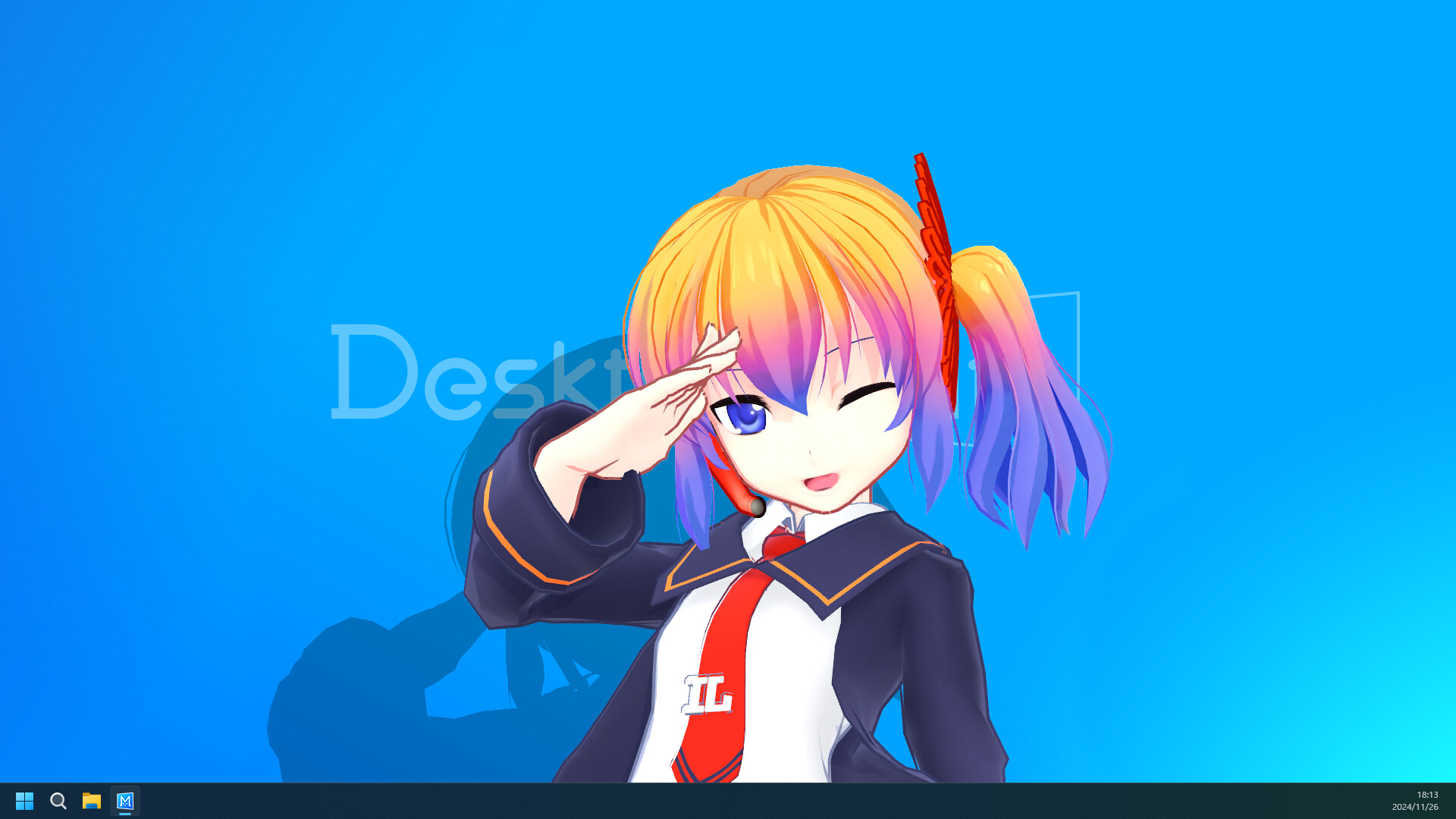
Step 1: Steam
Step 2: clean launch
Step 3: settings
Step 4: personalize slowly
Confirm your platform, Steam account, available storage, and the exact publisher route.
Open this routeTry the base character, window interaction, and alarm before touching a loader or model.
Choose one next step: official DLC or one source-verified community project, with a rollback plan.
Open the Desktop Mate Steam listing for App ID 3301060 and use Steam's own Install or Play Game flow. The base application is listed as free to play; a separate .exe, .dmg, APK, or “unlocked” package is not needed.
Steam is also the cleanest place to receive updates and use file verification. Keep the first install unmodified so you have a known-good reference.
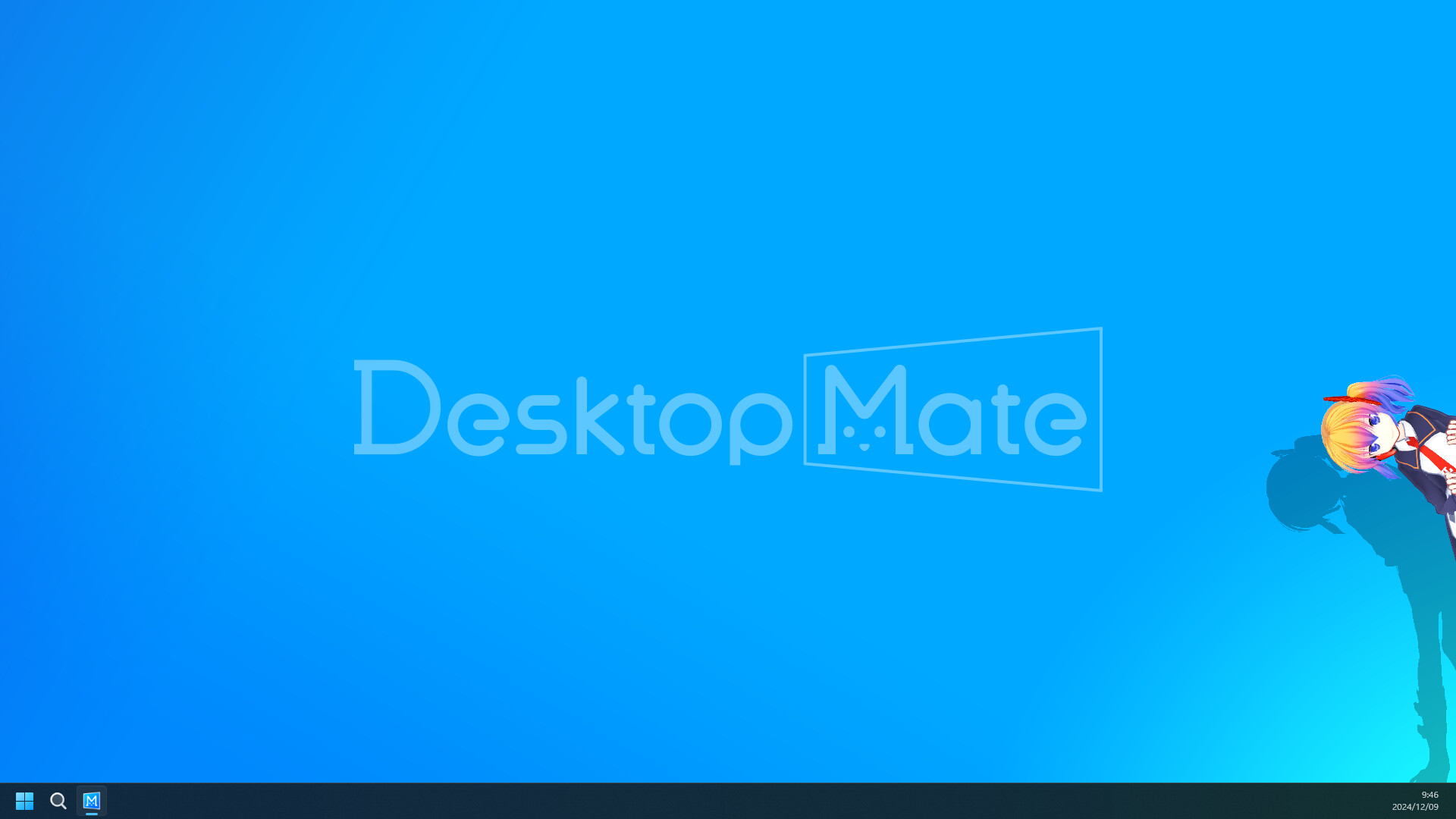
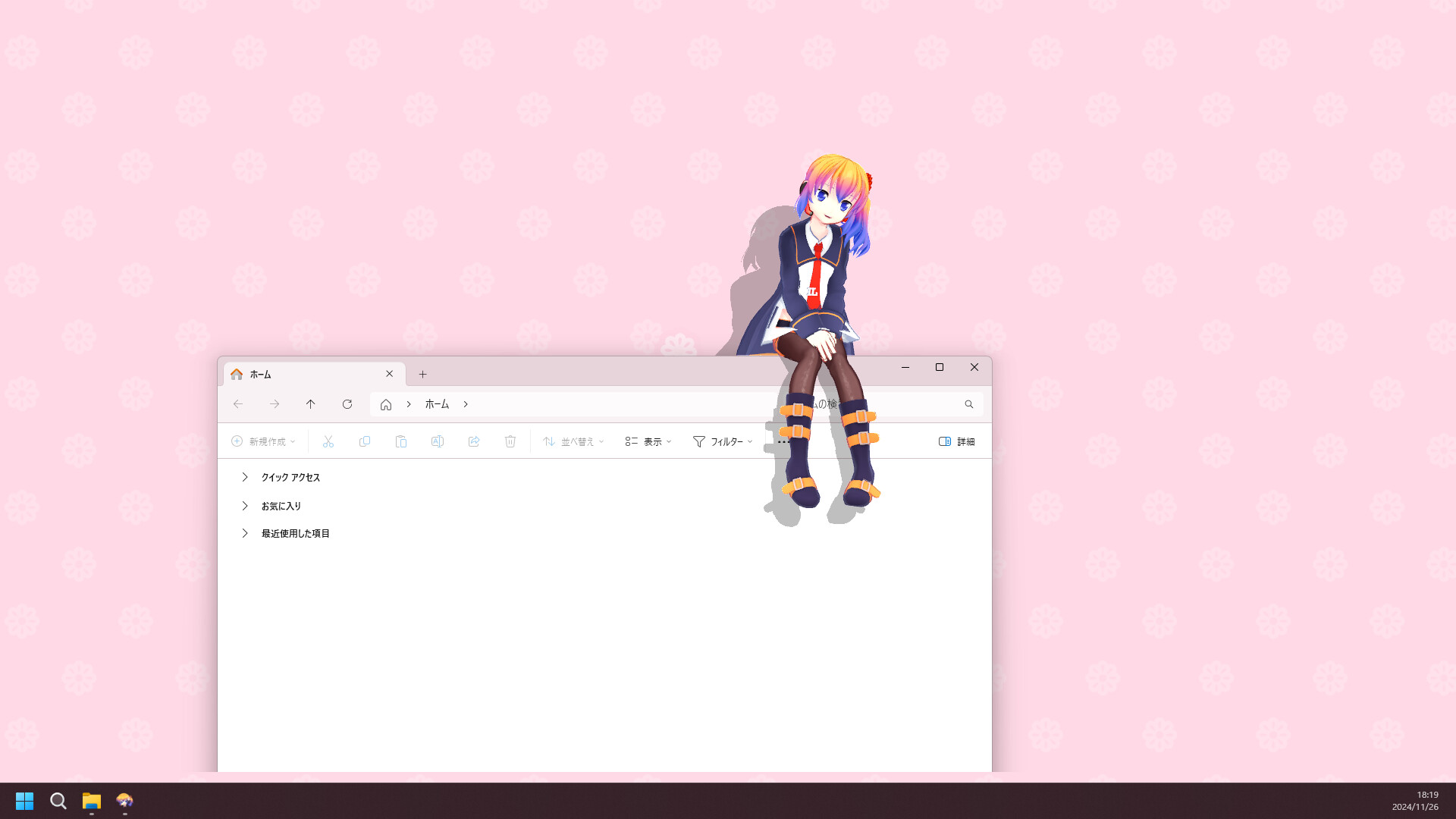
Launch once without DLC or community files. Check how the character sits around a window, how cursor or window interactions feel, and whether the app's presence is comfortable at your normal display scale.
The goal is not to configure everything in one pass. It is to learn the default behavior so any later change has a clear before-and-after.
Move the companion away from menus, browser controls, captions, and any area you need to click repeatedly. If the character distracts you, reduce its presence or close the app; the useful setting is the one that keeps your work readable.
Take a screenshot or note of the settings you like. This is a practical rollback reference when you later compare a DLC character or community model.
Official character DLC follows the Steam product route. Community mods follow the original creator's route and can require a loader, a particular app build, or a Windows-only workflow. Pick one path first so a problem stays diagnosable.
When you use a community project, keep the source URL, release date, license, requirements, and removal steps together. The Desktop Mate mod catalog links each documented project to its own page for that reason.
Browse the source-verified mod catalog Check platform availability
Exit Desktop Mate and remove the last change first. If the clean app still fails, use Steam's Installed Files > Verify integrity. Do not add a second loader or download a random reupload as a guess; that makes the cause harder to find.
If a model is hosted on Nexus, return to its Files and Posts tabs for current requirements and permissions. If a GitHub tool has no packaged release, treat it as source-only and do not replace it with an anonymous executable.
Install the clean base app from Steam, launch it once, try its interaction and alarm behavior, and only then decide whether to add DLC or a mod.
The base Steam install is straightforward. The complexity usually comes from community loaders and models, so add one project at a time and keep a rollback path.
Remove the last mod or loader, relaunch the clean app, and use Steam's Installed Files > Verify integrity if needed. Follow the original project's removal notes.
The publisher-listed route currently covers Windows and Apple silicon Mac. Linux, Steam Deck, Android, and iOS need separate availability answers; do not use an unofficial mirror.
This page uses official product material for the Desktop Mate route and keeps similarly named projects or community files on their original sources.
Product and platform details checked on 2026-07-22. Recheck the live source pages after app or platform updates.