Source-first installation workflow

How to install Desktop Mate mods safely

There is no universal copy path for every Desktop Mate mod. Use the original author's exact requirements, change one layer at a time, and keep a clean Steam rollback.

Independent fan resource. Not affiliated with, endorsed by, or sponsored by infiniteloop Co., Ltd., Valve/Steam, or any character rights holder.

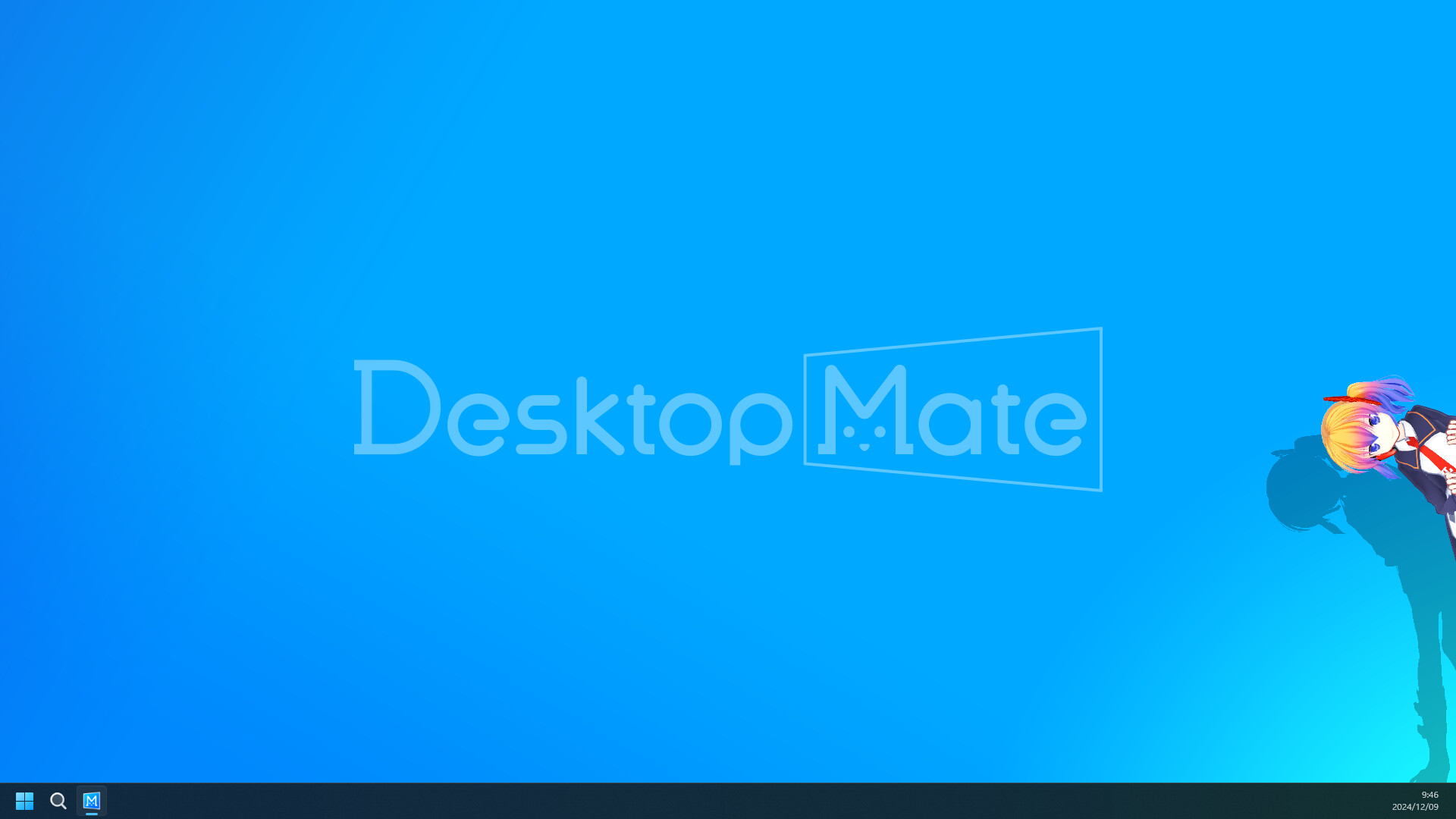
Desktop Mate settings interface on a real desktop.
Official Desktop Mate settingsSteam product screenshot
01

Start from a clean Steam launch.

02

Use the original author source.

03

Install one change at a time.

04

Keep a removal and verify plan.

BEFORE DOWNLOADING

Record the compatibility stack

Write down the Desktop Mate build, operating system, loader name and version, mod release, and original source URL. If any one of those is missing, the result is harder to reproduce or fix.

  • Check whether the project is current, legacy, broken, source-only, or simply unverified.
  • Look for a packaged release before downloading source-code archives.
  • Read the license and redistribution rules for character files.
  • Do not use DLC unlockers, NoSteam packages, or anonymous installers.
1. Create a clean Desktop Mate baseline

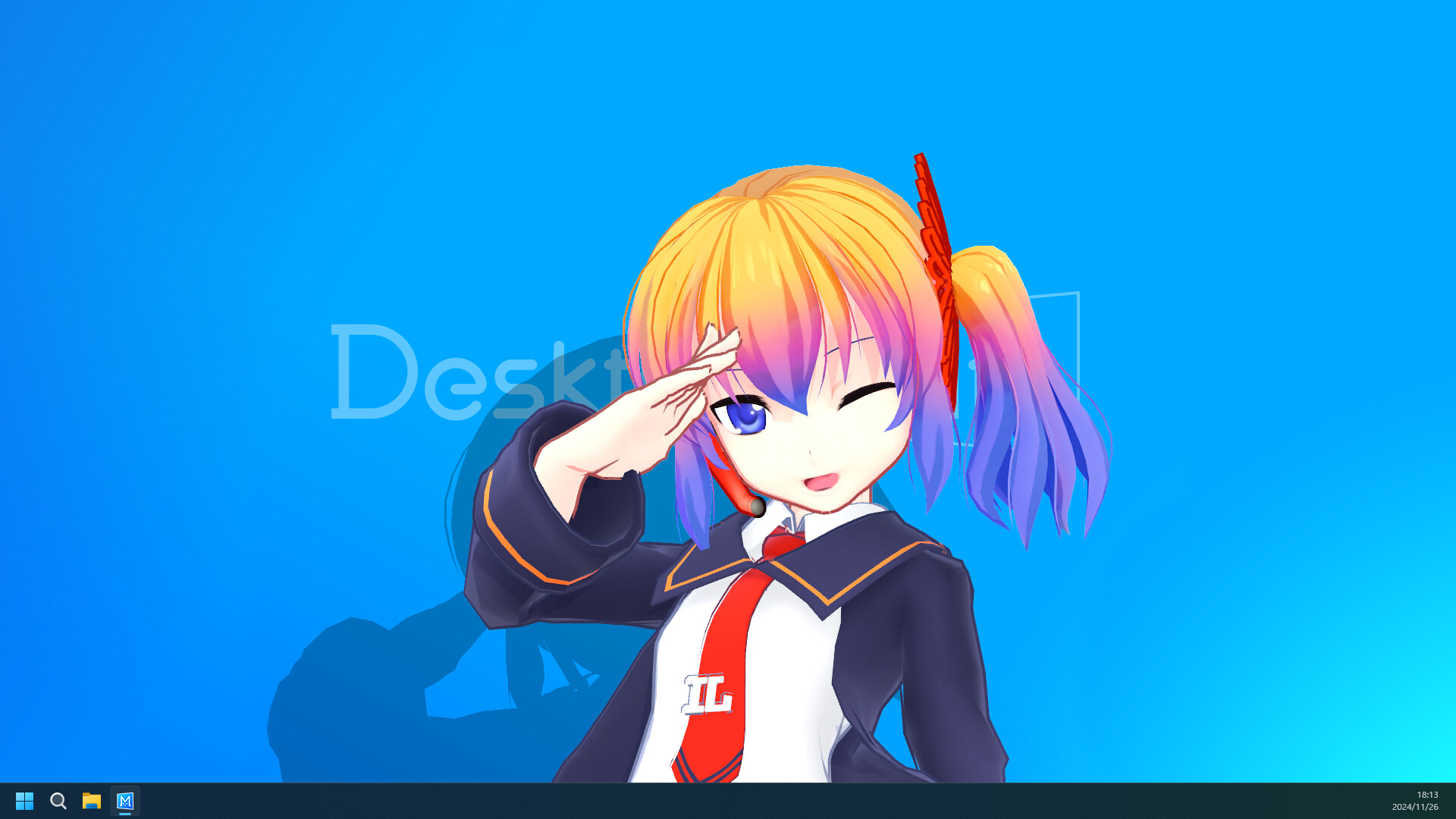
Install the base app from Steam, launch it without a loader, and confirm the character, settings, and window interaction work. Save a screenshot or short note of the settings you want to restore.

Official Desktop Mate screenshot showing a character interacting with a desktop window.
Official product screenshot: confirm this clean behavior before changing the app.

2. Verify the author, release, and file

Follow the mod page to the original GitHub repository or Nexus item. A GitHub release asset can be a direct author file; a Nexus model stays on the Files page because login, permissions, revisions, and scan results belong there.

Do not use a search-result mirror when the original page says the project is source-only or prohibits re-uploading.

3. Follow the project-specific install steps

  1. Confirm the base Desktop Mate app launches cleanly from Steam.
  2. Open the original author page and identify the exact release, loader, app version, and platform.
  3. Read the license, requirements, install notes, known issues, and removal steps before downloading.
  4. Download only the original release asset or the uploader-controlled Nexus Files entry, then scan the archive.
  5. Close Desktop Mate, record the clean state, and back up only the settings or files the author says will change.
  6. Install exactly one project according to its own README; do not invent a shared folder path.
  7. Launch and test the changed behavior before adding another model or feature.
  8. If anything fails, remove the last change and verify the base app through Steam.

4. Test one behavior at a time

Launch Desktop Mate and check only the feature you changed. Record whether the app starts, the model appears, window interaction still works, and settings remain usable.

Do not add a second project until the first one is stable. That keeps a loader conflict or broken model traceable.

5. Uninstall and recover cleanly

Exit the app. Remove only the files introduced by the project or restore the documented backup. If the base app still fails, remove the third-party loader and use Steam > Properties > Installed Files > Verify integrity.

Keep personal model archives outside folders Steam may replace, and return to the original project page before trying another release.

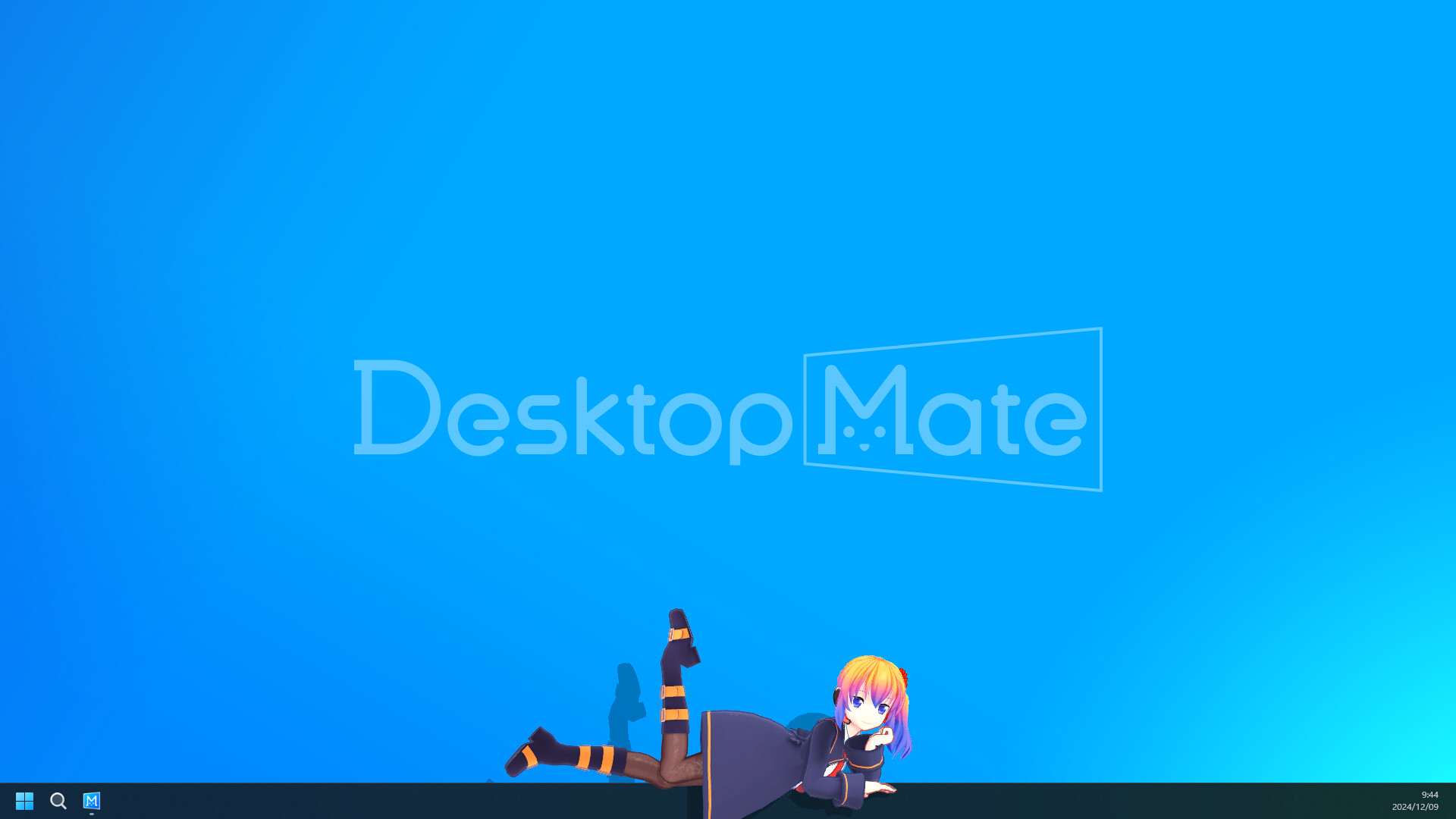
Desktop Mate character on the unmodified desktop in an official screenshot.
Official product context: recovery ends with a working clean base app.

Desktop Mate mod installation FAQ

Is there one folder for every Desktop Mate mod?

No. Loaders, feature mods, and character replacements can use different paths and prerequisites. Follow the original author's README for the exact project.

Should I install several Desktop Mate mods together?

Install and test one change at a time. Otherwise, a failure cannot be traced to a specific loader, model, or version.

How do I uninstall a broken Desktop Mate mod?

Exit the app, remove only the files added by that project, remove its loader if required, and verify the base app through Steam. Use the original removal notes when available.

Can I install a mod that asks me to disable antivirus?

Stop and do not run it. Return to the original source, inspect the scan details, and avoid unknown installers or paid-content unlockers.

Installation sources

Use each mod's own page for live requirements and file paths. This checklist deliberately does not fabricate one install folder for unrelated projects.