REQUIREMENTS
Check the stack before installing
- Platform: Windows
- Loader or runtime: MelonLoader
- Release: 1.0.0
- License: MIT
- File: DisableShadows.dll (6 KB)
Performance / community project
Disable Shadows is a tiny MelonLoader mod that turns off shadows cast by the active avatar. Its goal is lower rendering cost, but the author published no benchmark and current-version compatibility is unverified.
Independent fan resource. Not affiliated with, endorsed by, or sponsored by infiniteloop Co., Ltd., Valve/Steam, or any character rights holder.
Built for an older Desktop Mate or loader version. Verify compatibility before using it.
WHAT IT DOES
Desktop Mate's own Steam requirements note that performance needs rise with character count and settings. Removing an avatar shadow can reduce a small amount of GPU work, especially on integrated graphics, but it will not fix every source of stutter or high CPU usage. This page therefore describes the mod's narrow change without promising a specific frame-rate increase.
REQUIREMENTS
The only release dates to January 2025. It may fail to load against newer Desktop Mate assemblies. The official app now provides its own evolving settings, which should be tried before legacy injection mods.
Close Desktop Mate and delete DisableShadows.dll from the Mods folder. No model files should need restoration; verify Steam files if rendering remains abnormal.
It may reduce a small amount of GPU work, but the author provides no benchmark and the result depends on your hardware and settings.
The published description indicates a runtime shadow change, not a redistributed model.
No author preview was found. The image on this page is clearly labeled official product context.
Page checked against the linked project material on 2026-07-22. Compatibility can change after Desktop Mate, MelonLoader, BepInEx, or the mod updates.
RELATED PROJECTS
MateChat connects a Desktop Mate character to configurable language-model APIs and optional text-to-speech. The project is archived and its author states that current Desktop Mate no longer supports the modding path it used.
Hide From Taskbar removes the primary Desktop Mate window from the Windows taskbar after the app is clicked, reducing taskbar clutter while the character remains visible on the desktop.
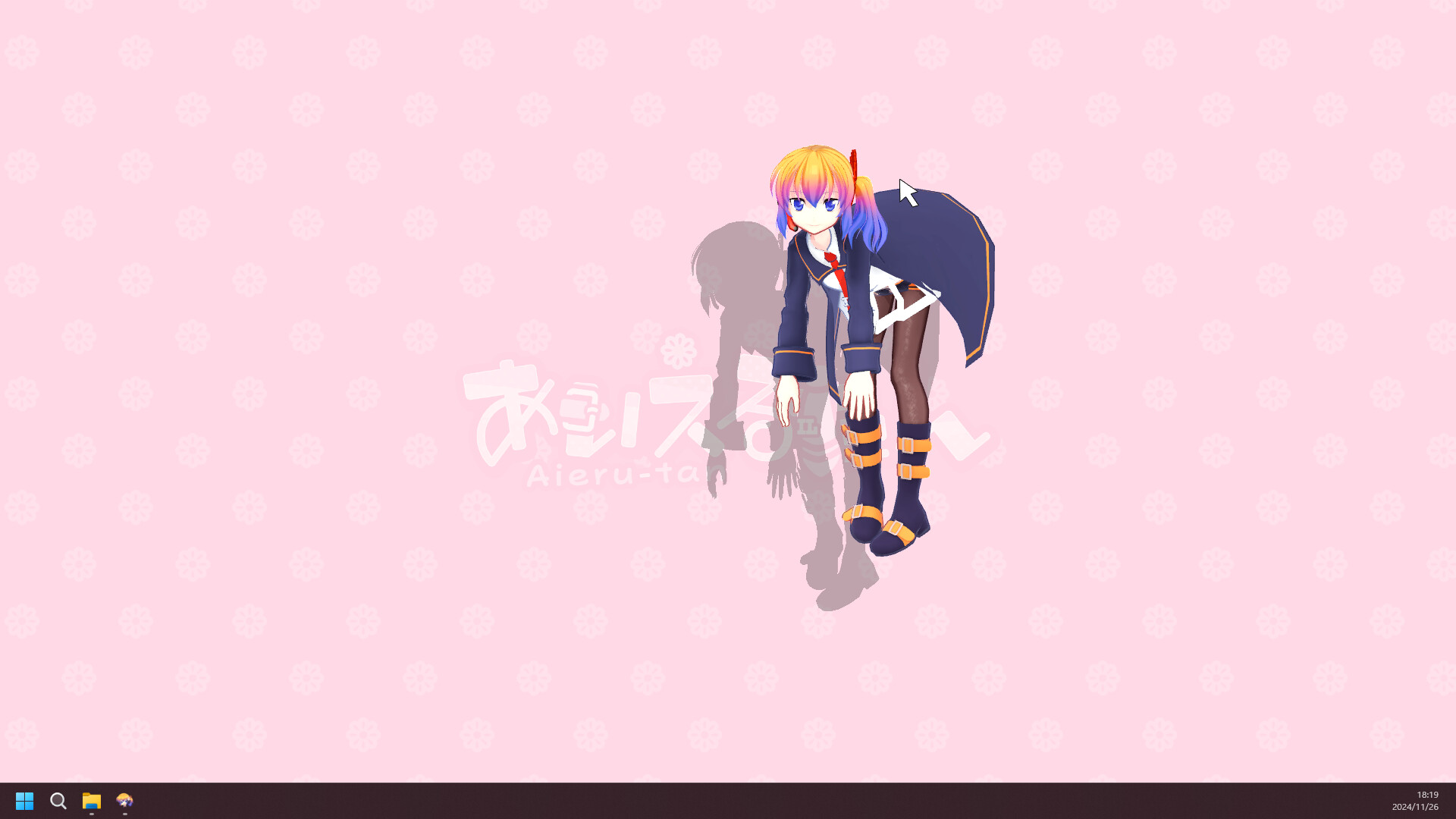
Character Rotator adds roll, pitch, and yaw controls with configurable keys. Its repository headline says the current Desktop Mate version is broken, so this is a legacy reference page with an explicit warning.